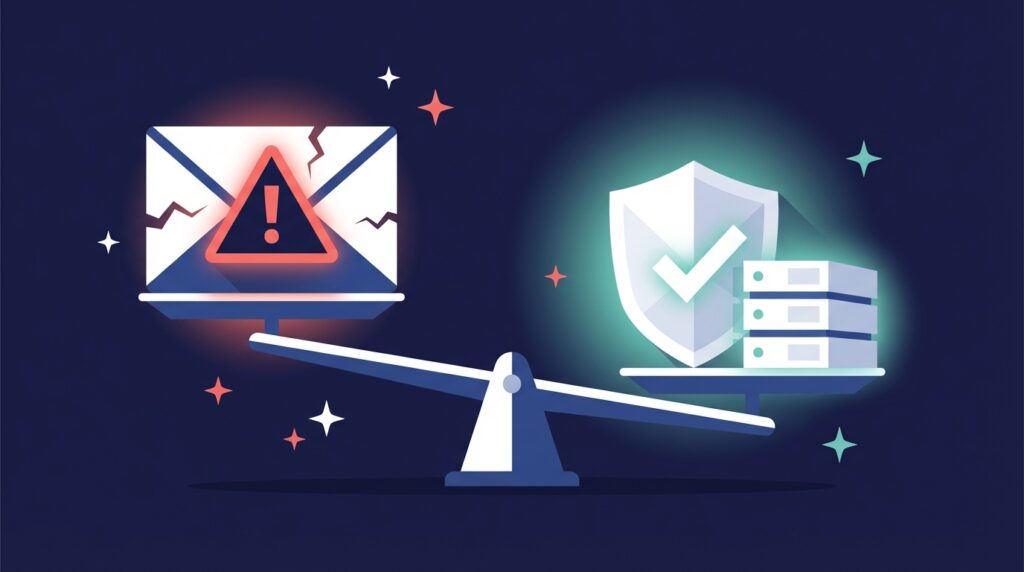



Why Do You Need Domain Reputation Monitoring?
You’ve crafted the perfect message. The audience is right. The content is clean and compliant. And yet, the emails quietly slip into spam or never show up at all.
That’s not bad luck. That’s bad domain reputation.
Many assume deliverability issues come from low-quality lists or overused templates, but the real problem often lies beneath the surface. Your domain’s reputation silently decides whether emails reach the inbox, promotions tab, or spam folder. It usually drops long before you even notice engagement slowing down.
Before you start reading, if you’re sending emails from your primary domain, this guide will help you understand your domain’s health and how to spot early signs of deliverability issues. If you manage multiple sending domains or subdomains, this becomes even more important.
Domain reputation is a lot like being a DJ at the club. If you read the crowd and keep the vibe right (relevant, valuable emails), people stay and engage. If you play the same track too often (duplicate content) or blast the volume too high (send too much from the same domain), people tune out, and the bouncers (email providers) shut you down. One bad set can ruin your reputation, and rebuilding it takes consistency and patience.
This is where domain reputation monitoring comes in. You may never see an exact score, but when you track the right metrics, the picture becomes clear, and that’s exactly what we’ll unpack here.
How to tell if your Domain Reputation is bad
Your domain reputation doesn’t fall overnight. It starts with small signals such as fewer opens, lower engagement, or sudden drops in replies. When your sending patterns, audience, and content remain the same but performance declines, it usually points to a reputation issue.
Here’s how to look at it:
If you normally see a 10% reply or engagement rate, you should expect about 10 interactions per 100 emails. If that suddenly drops to 1 or 2, something is likely wrong.
If your average is closer to 1%, you’ll need a larger sample size, at least 500 emails, to see trends clearly. A dip from 5 interactions to none is still a warning sign.
It’s not about individual campaigns; it’s about trends over time. Track your open and reply rates consistently. A sudden decline, even when your lists and content haven’t changed, often signals that your domain reputation is already weakening. Continuous domain reputation monitoring helps you catch and fix issues before deliverability takes a hit.
How to Monitor Domain Reputation (The Right Way)
There are dozens of tools that claim to measure domain reputation, but most don’t track what cold emailers actually need to know. If you’re wondering how to “check my domain reputation”, this is what you need to know.
- Inbox placement tests: These tests simulate where your emails land in the inbox. Spam or primary inbox. Aerosend does this bi-weekly for its clients.
- Blacklist monitoring: Check whether your domain or IP is listed on known blacklists.
- Spamhaus
- Spamcop
- Barracuda
- SEMFRESH
- Google Postmaster: This tool shows complaint rates if you’re sending high volume to Gmail users (P.S. 0.03%+ is already bad).
- Microsoft SNDS: It’s Outlook’s postmaster, try to keep spam rates below 0.5%.
- Technical checks: Validates DNS records like SPF, DKIM, DMARC. These are important for setup, but not enough to measure reputation on a day-to-day basis. ALWAYS warm up your inboxes before, during, and even after you launch your campaign.
- Engagement Rates: If your engagement suddenly drops, it probably has something to do with your domain.
Why Don’t Most Domain Reputation Tools Detect Problems Early?
Most domain reputation tools only alert you after the damage is done. They can detect blacklists or spam complaints, but they rarely predict them. A sudden drop in open or engagement rates usually means your emails are being filtered, yet no tool will warn you beforehand. This is why proactive domain reputation monitoring is far more effective than reactive fixes.
How Can You Tell If Your Domain Reputation Is Starting to Drop?
The earliest signs are hidden in your own data. Keep an eye on:
- A steady decline in open or engagement rates across inboxes
- Sudden spikes in bounce rates (anything above 1% is a warning sign)
- Inbox placement tests showing more messages landing in spam
If engagement keeps falling and spam placement rises, pause sending, rest the domain, or switch to a secondary one before the damage spreads further.
What Damages Your Domain Reputation?
Listed below are some of the common mistakes that new or even experienced cold emailers can make:
- No Technical Setup: If email providers cannot verify you, they will not let you land in the inbox either. Your DNS records (SPF, DKIM, DMARC) need to be properly set up so that providers don’t think you’re suspicious.
- No Warm-Up: Would you trust a DM from an account with zero followers? Probably not. Would you reply to a verified account with 500+ followers? Perhaps. The difference between the two is that one looks more trustworthy and safer than the other. Similarly, launching cold emails from a fresh inbox with no sending history screams spam. You need to gradually build up volume and engagement first.
- No Sending Strategy: It is better not to send at all than to send without a strategy. Inconsistent sending volumes and low-quality lists will be your biggest enemies here. These things make you look spammy. A lack of structure leads to long-term damage, even if you manage to get by with a poor setup (though it’s not really possible).
- Domain Rotation: Relying on a single domain for all your outreach is risky. Every domain has a natural sending limit, and once you push beyond it, your reputation starts to slip. Domain rotation distributes your sending activity across multiple domains or subdomains so that no single one carries the full load.
- Spam Complaints: You can’t see who marks you as spam, but you know who does? Your email provider. It may be out of your control who marks you as spam, but you should still do everything possible to prevent it. No authentication, poor copy, and bad targeting are all reasons you could end up getting a complaint.
- Domain Health Checker Tools: There is no absolute way to check your domain reputation, but there are domain health tracking tools that can help point you in the right direction. These tools focus on spam rates, complaints, and blacklist data.
- Google Postmaster: Many senders start with Google. The Postmaster tool lets you track domain reputation for Gmail accounts. You’ll be able to see color-coded reputation ratings and spam rate tracking. Ideally, spam rates should always be below 0.3%.
- Microsoft SNDS: Microsoft Smart Network Data Services works for Outlook. Like Postmaster, it also shows you the complaint rate (stay below 0.5% here). Additionally, you get Junk Email Reporting Program (JMRP) data, which can help identify messaging issues. In the end, you get your sender reputation, which you obviously want to be high.
- Sender Score: This is a third-party tool that uses multiple factors, such as engagement metrics and inbox placement, to give a score on a 0–100 scale. It tells you how likely your domain is to trigger spam filters.
What To Do If Your Domain Reputation Drops?
If your domain reputation monitoring suggests something is off, act quickly. Reputation issues worsen the longer you keep sending. Not every domain can be recovered, but you can often limit the damage or rebuild with the right approach.
| Situation | Fix It? | Action |
|---|---|---|
| Open rate dropped slightly | ✅ | Rest domain 5–7 days, rewarm |
| Spam folder during inbox placement test | ❌ | Retire domain |
| Blacklisted + 1% bounces | ❌ | Retire + replace |
| Engagement stable but replies dip | ✅ | Tweak copy and retest |
- Pause sending immediately: Stop all activity from affected inboxes or domains. Continuing to send from a flagged or blacklisted domain only reinforces negative signals.
- Rest and rewarm: Let the domain rest for several days or weeks while deliverability stabilizes. When resuming, start with a small, verified audience and gradually scale up.
- Rotate or replace domains: If a domain is severely damaged or appears on major blacklists, retire it and use a new one. Always warm up replacements before use.
- Maintain a Do-Not-Contact (DNC) list: Exclude anyone who has unsubscribed, complained, or repeatedly ignored emails. It keeps complaint rates and bounce risks low.
- Use Spintax: Slight variations in your subject lines and body copy can reduce repetitive patterns that spam filters flag. Refresh your templates, rotate CTAs, and avoid identical phrasing across large batches.
- Keep warm-up ongoing: Even stable domains benefit from continuous warm-up cycles and engagement activity. It signals healthy, consistent sending behavior.
If results don’t improve after these steps, it’s safer to retire the domain and start fresh with proper setup and warm-up. A clean, consistent restart often restores deliverability faster than trying to recover a heavily burned domain.
When Should You Add More Domains?
The short answer: before you need to. You should never send large volumes from your primary domain. Use separate domains or subdomains for campaigns, especially if you plan to scale. A single domain can safely handle around 50 to 75 emails per inbox per day, depending on engagement and warm-up history. Adding more domains isn’t just about handling higher volume. It’s also about protecting your main domain’s reputation, spreading risk, and maintaining consistent deliverability as you grow. Healthy sending practices mean setting up and warming additional domains before deliverability starts to drop, not after.
Final Thoughts on Protecting Your Domain Reputation
Email deliverability isn’t just about what you send; it’s about how your domain is perceived every time you do. Your domain reputation quietly decides whether your emails are trusted, filtered, or ignored.
Most senders only start paying attention once open rates drop or messages land in spam, but by then, the damage is already done. Domain reputation monitoring helps you catch these signals early, before they impact performance.
Think of it as preventive maintenance for your inbox. Monitor your engagement, check your email domain reputation regularly, and keep an eye on your overall domain reputation score through tools like Google Postmaster, Microsoft SNDS, and Sender Score.
Protecting your reputation isn’t a one-time fix; it’s a habit. When you track it consistently and make small adjustments before problems grow, your emails stay healthy, your deliverability strong, and your audience reachable.