

Diversifying your cold email outreach is important for SDRs. You can’t really rely on a single inbox type for outreach. Inbox Navigator allows you to diversify your campaigns across Google and Azure accounts.
The sole reason for diversifying the campaign is to sustain high inbox placement. But can Inbox Navigator do that with the current cold email infra? In this Inbox Navigator review. I’ll explain the complete infrastructure, pricing plans, deliverability success, etc.
Key Takeaways
Inbox Navigator offers Google and Azure inboxes, billed monthly for $3/inbox, and $30/mo per domain. Pre-warmed Google inboxes are also available for $7/inbox. But setup is slow, and you have to wait ~24- 72 hours for provisioning.
- Inbox: Google and Azure Inboxes
- USP: Pre-warmed Google Inboxes for $7/inbox
- Deliverability: Mixed Reviews
- Risk: No ongoing warmup or burn monitoring
- Starting Plan: ~$3/inbox
- Support: Gated behind demo call
About Inbox Navigator
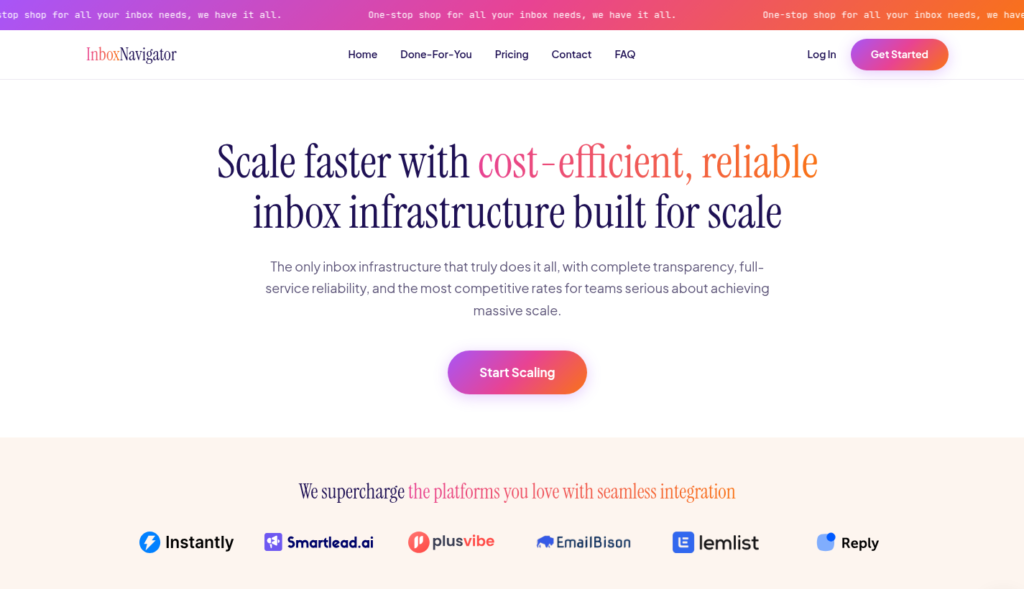
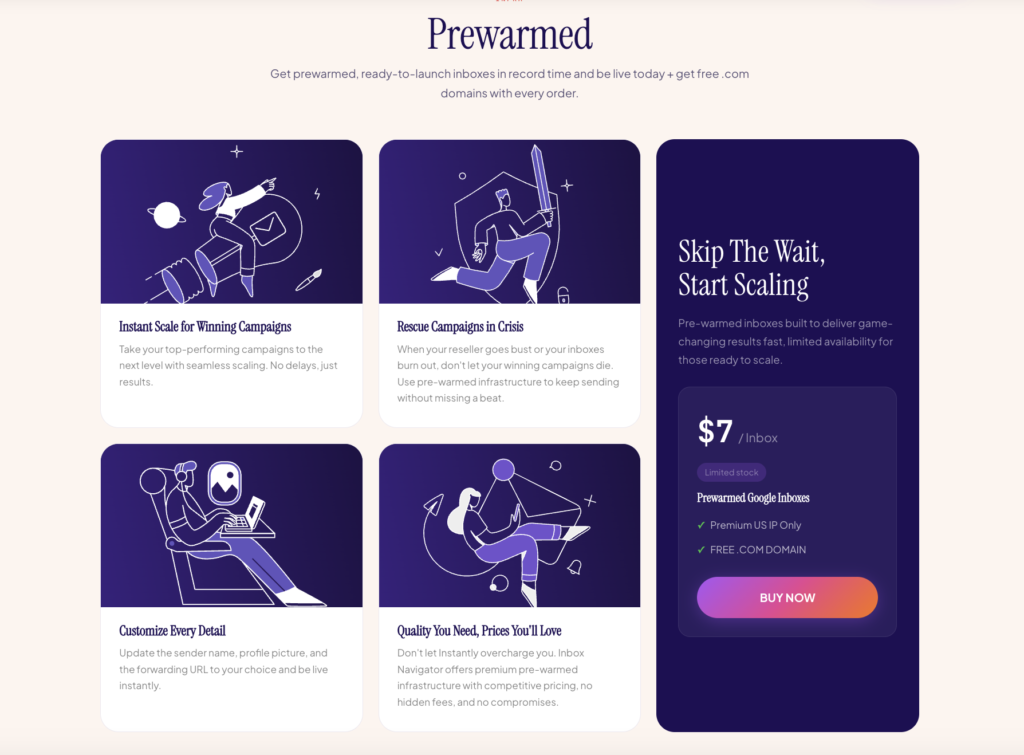
Inbox Navigator is a cold email service provider offering Google and Azure Inboxes. Both fresh and pre-warmed Google Inboxes are available and billed at $3 and $7 per inbox.
Azure inboxes are billed monthly for $30/domain, which includes 100 inboxes.
The setup is automated and connects your accounts to your sequencers in 24-72 hours.
Inbox Navigator doesn’t offer warmup or monitoring. You have to rely on external tools to run warmup and domain monitoring.
How Inbox Navigator Works
Inbox Navigator Features
Multi-Inbox Provider
If you’re looking to diversify your cold outreach, Inbox Navigator offers the flexibility to send cold emails from Google and Azure inboxes.
Pre-warmed Google Inbox
If you don’t have 2-3 weeks to warmup your inboxes, then you can simply buy Inbox Navigator’s pre-warmed Google inboxes for $7. However, the warmup methodology is not defined. So the credibility of warmup is unknown.
Done-For-You Setup
Inbox Navigator sets up the inboxes for you. From DNS configuration to integrating into the sequencer, it will take care of everything.
Pros
Diversify Your Cold Outreach Campaign
Inbox Navigator is a multi-inbox provider offering Google and Azure inboxes. This helps you diversify your campaigns. So if one ESP tightens its rules on cold email, you can always depend on the other.
Cons
No Burn Detection or Monitoring
Inbox Navigator doesn’t provide monitoring or burn detection. So you will never know how your inboxes are performing in real time. You can only know when they totally burn out.
No Ongoing Warmup
Inbox Navigator doesn’t offer ongoing warmup, so you have to do it on your own. It only imports the inboxes into your sequencer and configures warm settings.
Unverified Deliverability Claims
Inbox Navigator claims on its website to provide a 99% inbox rate and a 0.5% bounce rate. But this is self-reported, and there is no way to verify these claims.
Limited Deliverability Transparency
Inbox Navigator claims to provide managed inboxes for Google and Azure. However, it doesn’t include burn monitoring, and they are not transparent about their inbox placement rates.
Unclear Account Origin
The origin of Inbox Navigator’s Google account is unknown.
Inbox Navigator Pricing
| Inbox Type | Sending Limit/day | Price/Inbox |
|---|---|---|
| 15 | $3 | |
| Pre-Warmed Google | 15 | $7 |
| Azure | 500 | $30/domain = 100 Azure Inboxes |
Aerosend: Best Inbox Navigator Alternative
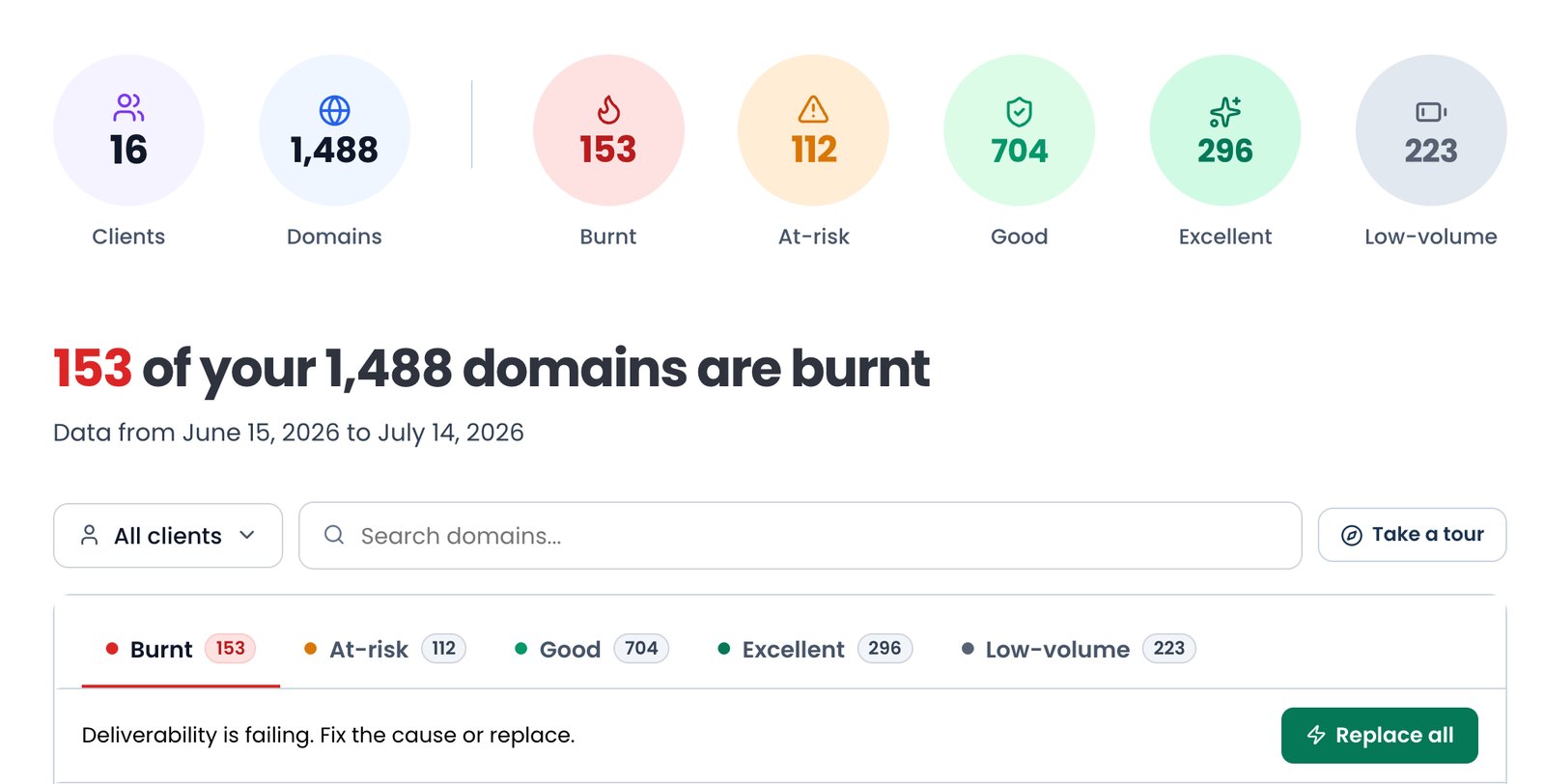
Inbox Navigator offers Google and Outlook inboxes and handles the setup for you. It also claims a 99% inbox rate. But there is no clear burn-monitoring or inbox-placement testing to show how it arrives at that number. So if a domain starts having problems, you may only notice it after your deliverability drops.
On the other hand, Aerosend takes a different approach. It runs its own dedicated infrastructure designed for better inbox placement. It includes ongoing warmup, burn monitoring, and biweekly inbox placement tests. So you can see what is happening with your domains and diagnose problems earlier.
Here’s the brief comparison between Inbox Navigator and Aerosend –
| Compare | Inbox Navigator | AerosendPrivate infrastructure |
|---|---|---|
| Inbox Available | GoogleAzurePre-warmedGoogle account origin unclear; Azure 100 per domain | Private infrastructureBuilt for cold email, so no Google or Outlook bans |
| Warmup | ~Pre-warmed onlyNo ongoing warmup; pre-warm method not defined | ✓Included, ongoingComplimentary premium warmup, matched to who you email |
| Monitoring | ✕Not offeredYou rely on external tools | ✓Six metricsEvery domain scored daily and surfaced to you |
| Deliverability | ~Claimed, unverifiedSelf-reported 99% inbox rate, no placement testing shown | ✓Our responsibilityBiweekly inbox placement tests, included |
| Domain Burn Alerts | ✕Not offered | ✓IncludedBurnt domains flagged within 5 minutes, replaced in one click |
| Pricing | From $3/inboxPre-warmed Google $7; Azure $30/domain for 100 | $4 / inbox$2 per inbox past 150 · 30 inboxes = $120/mo |
| Ready To Test? | Visit Inbox Navigator Website ↗ | Try Aerosend For Free |
Price/Mailbox Breakdown (~5,000 emails/day)
| Requirements | Inbox Navigator | Aerosend |
|---|---|---|
| Inboxes needed | ~330 | 200 |
| Send rate per inboxes | 15/day | 20 to 25/day |
| Plan | Basic | Starter to Growth banded |
| Per-mailbox rate | $3 | $3.50 (blended) |
| Monthly total | ~$990 | ~$700 |
Inbox Navigator Support
The support is gated behind the demo form and is accessible via in-app.
The Verdict
Inbox Navigator works best for beginners looking to experiment with finding out the right weightage for diversity. But the setup is slow, and you also need to run the warmup through your sequencer and proactively monitor your domains.
Based on Inbox Navigator’s “99% inbox placement rate” claim, the infrastructure has basic gaps in warmup and monitoring. Without a proper warmup, you won’t be able to build the sender reputation necessary for “99% inbox placement”.
But if inbox placement is your priority, you should opt for Aerosend. It offers dedicated infrastructure, keeps the inboxes isolated, and includes warmup, burn monitoring, and inbox placement testing.
So, Inbox Navigator is good if you want a cheap hands-off setup. Aerosend is better if you care more about the infrastructure behind your inboxes.
