

Overview
CallPad helps salons and small businesses capture missed calls, manage bookings, and answer customer questions so that every potential customer gets a response. Before using cold email, their outreach relied on phone calls, making up to 100 calls a day. It was time-consuming and inefficient, often resulting in just one or two conversions.
To scale faster, they turned to cold email and started using Smartlead to manage campaigns. While this approach saved time, it revealed a new problem: deliverability. Emails often failed to reach inboxes, making it hard to tell whether low replies were due to weak copy or poor deliverability.
The Challenge
Without knowing where emails landed, testing became almost impossible. Even well-written messages produced low engagement because they were not being seen by prospects. The team needed a reliable infrastructure that could improve inbox placement and help identify which copy actually worked.
The Switch to Aerosend
Conrad (Co-founder – CallPad) came across Aerosend during a SmartLead webinar. Impressed by its focus on deliverability and email infrastructure, he decided to try it. Onboarding was fast and straightforward, allowing him to quickly run A/B tests and refine his outreach strategy. The immediate benefit was clarity. With Aerosend, every email had a higher chance of being seen, and testing became more meaningful. Conrad could finally measure the quality of his copy without worrying about spam folder issues.
The Results
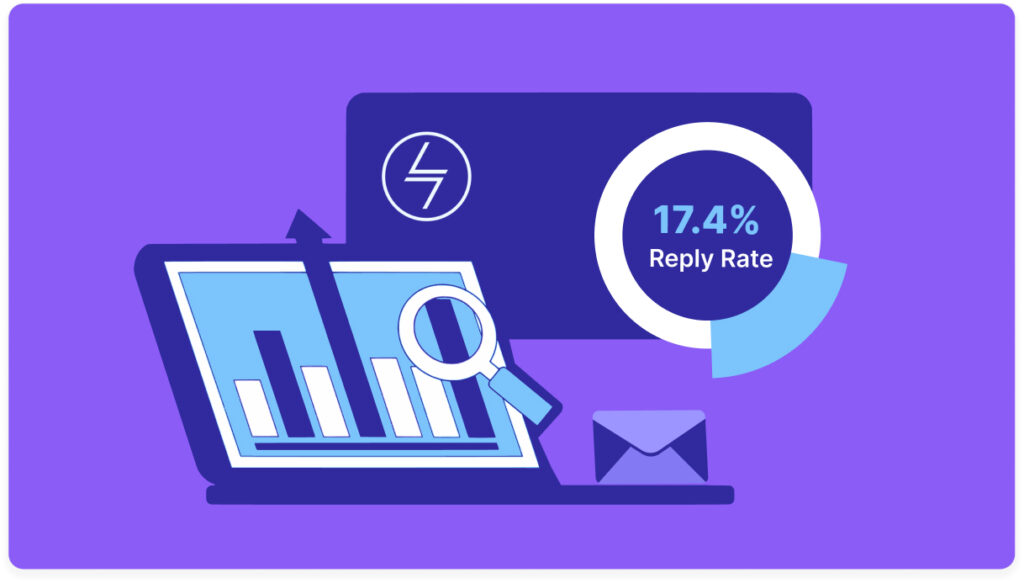
The difference was clear within weeks. CallPad’s reply rates rose from under 1 percent before Aerosend to 2 to 3 percent during early tests. Once Conrad optimized his copy and ran his winning variants through Aerosend, reply rates climbed past 4 percent, a fourfold increase compared to before.
More importantly, outreach efficiency improved drastically. Instead of making 50 to 100 calls a day, Conrad now consistently books two to three meetings daily through email alone. The campaigns are smoother, deliverability is stable, and every message sent has measurable impact.6
“Our reply rates went from under 1 percent to over 4 percent once we paired winning copy with Aerosend. It doubled my output and freed up hours. If your emails are not reaching inboxes, you are wasting effort.” – Conrad James, Co-founder, CallPad
About Aerosend
Aerosend offers private infrastructure for outbound campaigns, helping you send high-deliverability emails that consistently avoid spam filters while improving inbox placement and maintaining a strong sender reputation. It provides pre-warmed domains and inboxes, real-time alerts on burn rates, blacklists, and domain health, along with seamless integrations with tools like SmartLead to drive stronger deliverability and higher response rates. Try Aerosend today.