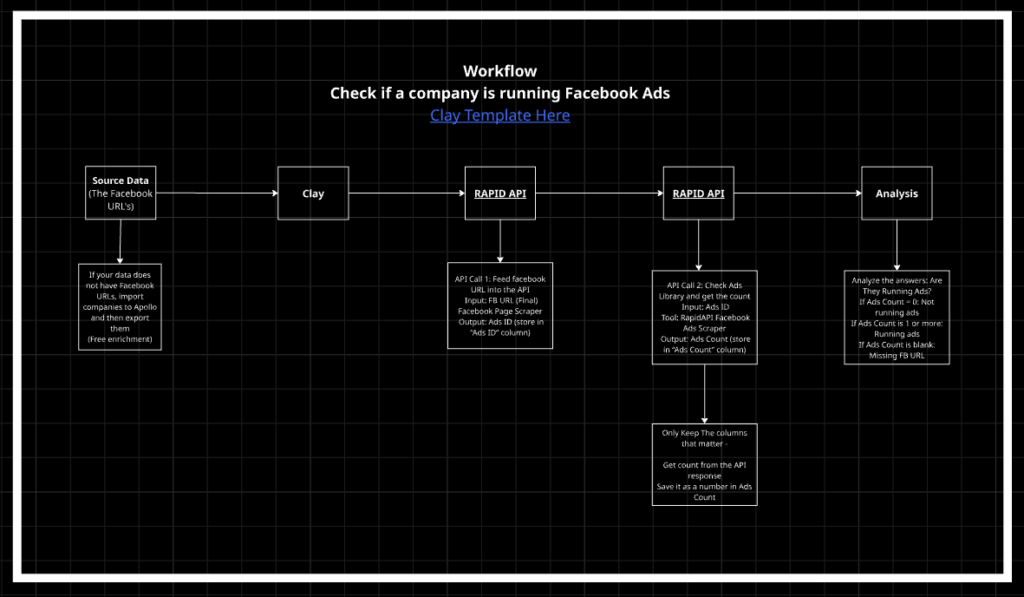
If you’ve ever wondered if a company is running Facebook Ads, this step-by-step guide shows you exactly how to find out using Clay.
Knowing whether a competitor or potential client is actively running ads gives you an immediate signal on marketing intent. Depending on your offer, this could also be your biggest filter in deciding whether or not to reach out to these companies.
Use Cases:
Marketing Consulting Companies:
- SEO Agencies: Reach out to prospects mentioning the high CPC and ROI of Organic Ads.
- PPC Companies: Reach out to prospects about creative ideas and mention you noticed they are running ads.
- Digital Marketing Agencies: Another intent signal to use in your campaigns.
Marketing Consulting Companies:
- Marketing Attribution Companies: Only target companies running Meta Ads.
What You’ll Need
- A Clay account (or automation tool)
- A RapidAPI account.
- Two API subscriptions (both have free tiers.
- Facebook Pages Scraper
- Ad Libraries RealTimeAPI
The Two-Step Process (High Level)
This workflow uses two API calls inside Clay:
- Convert a Facebook Page URL into a Facebook Page ID
- Use that Page ID to fetch the number of active ads
Once set up, Clay handles everything automatically.
Step 1: Open the Clay Template Table and Understand the Key Columns
Before running anything, it’s important to understand what each column does:
- Facebook URL
The Facebook Page URL for each company. This is the main input. - Get Ad Page ID
An HTTP API call that takes the Facebook Page URL and returns a Page ID. - Ad Page Id
A plain text column that stores the Page ID returned from the API. - Get Ad Count
An HTTP API call that takes the Page ID and queries Meta’s Ad Library. - Ad Count
A number or text column that stores the final ad count.
Step 2: Import Your Dataset Into Clay
You have two options here.
Option A (Fastest): You Already Have Facebook Page URLs
If your CSV, Excel, Airtable, or Google Sheet already includes Facebook Page URLs:
- Import the file into Clay
- Map the Facebook URL column directly
This skips any scraping or enrichment steps. The workflow can run immediately.
Option B: You Don’t Have Facebook Page URLs Yet
If Facebook URLs are missing:
- Upload your company list to Apollo (You can upload 5K Companies in the free Tier weekly) – Create multiple accounts if needed.
- Download the list, and it will be enriched with Facebook URLs.
- Use Claygent as a backup to get more data if needed.
Pro tip:
Before running any APIs, sanity-check the URLs.
- Good:
facebook.com/companyname - Avoid: post URLs, group links, or shared links
These often break API calls and waste credits.
Step 3: Add Your RapidAPI Credentials in Clay
Open the Get Ad Page ID column and edit its settings.
Inside the request headers:
- Add your RapidAPI key
- Add the host value for Facebook Pages Scraper
You can find both values directly in the RapidAPI documentation for the Facebook Pages Scraper. The headers are shown in the example code snippets.
If you’re unsure where something goes, copying the RapidAPI docs into GPT and asking it to map the fields into Clay is a reliable shortcut.
Here is the RapidAPI Scraper Link: RAPIDAPI SCRAPER
Step 4: Configure “Get Ad Page ID”
Still inside Get Ad Page ID, confirm the following:
- The endpoint matches the Facebook Pages Scraper API
- The Facebook URL input is mapped from Final – Facebook
- You test the request on a few rows first
A successful request should return a JSON response with a status code of 200.
Step 5: Store the Page ID in “Ad Page Id”
The API returns a full JSON response, so you’ll need to extract the Page ID:
- Open a successful response
- Locate the Page ID field
- Turn that value into a column
- Store it in Ad Page Id
This column becomes the input for the next API call.
Step 6: Configure “Get Ad Count”
Open the Get Ad Count column and set it up as follows:
- Input: Map from Ad Page Id
- Endpoint: Ad Libraries RealTimeAPI endpoint
- Headers:
- RapidAPI key
- Host value for Ad Libraries RealTimeAPI
- Add any optional filters you want, such as:
- Country
- Language
- Date range
Make sure the endpoint includes /ads and that the Page ID is dynamically inserted.
Here is the link to Rapid API Scraper: LINK
Step 7: Set the Response Value to Return (Important)
This step is critical.
Inside the Get Ad Count column:
- Scroll to Response value to return
- Enter:
Data.ad_library_main.search_results_connection.count
This tells Clay to return only the ad count instead of the entire response payload, which is usually too large.
If you want to see the payload, ads count is available here : Data -> Ad Library Main -> Search Results Connection -> Count
Step 8: Run the Table
Once configured:
- Run the table
- Clay will output the ad count directly
- Turn the returned value into a standalone Ad Count column
Step 9: Interpret the Results
- Ad Count = 0
The company is not running ads - Ad Count > 0
The company is actively running Facebook ads - Blank or error
Something failed upstream, usually:- Missing or invalid Facebook URL
- Incorrect API headers
- Wrong response path
Final Notes
This setup gives you a clean, repeatable signal for identifying companies actively spending on Facebook ads. Once configured, it scales easily across hundreds or thousands of rows with minimal manual work.
Follow the template exactly, test on small batches first, and you’ll have a reliable “running ads or not” indicator inside Clay.